Password Managers: Are They Really Safe to Use
You have probably been told to use a password manager. But there is a nagging question that stops many people from taking the leap: Are password managers really safe? You are essentially putting every password you own—your bank, your email, your social media, and your work accounts—into a single piece of software. If that gets hacked, it could be catastrophic. That fear is completely understandable. And it deserves a completely honest answer.
This guide does not just say “yes, they are safe, trust us.” It goes deep into exactly how password managers protect your data, what the real and documented risks are, what has gone wrong with specific products in the past, and what you can do to use one as safely as possible. By the end, you will have everything you need to make a genuinely informed decision — not just a marketing-led one.
Are Password Managers Really Safe? The Honest Answer
The short answer: yes—for most people, a reputable password manager is significantly safer than the alternatives. Reusing simple passwords across multiple sites is the leading cause of account takeovers. A password manager eliminates that risk by generating and storing unique, complex passwords for every account. The encryption used by leading password managers means that even if their servers are breached, your actual passwords remain protected — as happened with LastPass in 2022, where encrypted vaults were stolen but master passwords were not exposed.
That said, “safe” does not mean “risk-free.” Every tool has trade-offs. What follows is an honest breakdown of how they work, where the real risks lie, and how to minimize them.
How Password Managers Actually Work — The Security Behind Them
To evaluate whether a password manager is safe, you first need to understand what it actually does with your data. The security model is the key to everything.
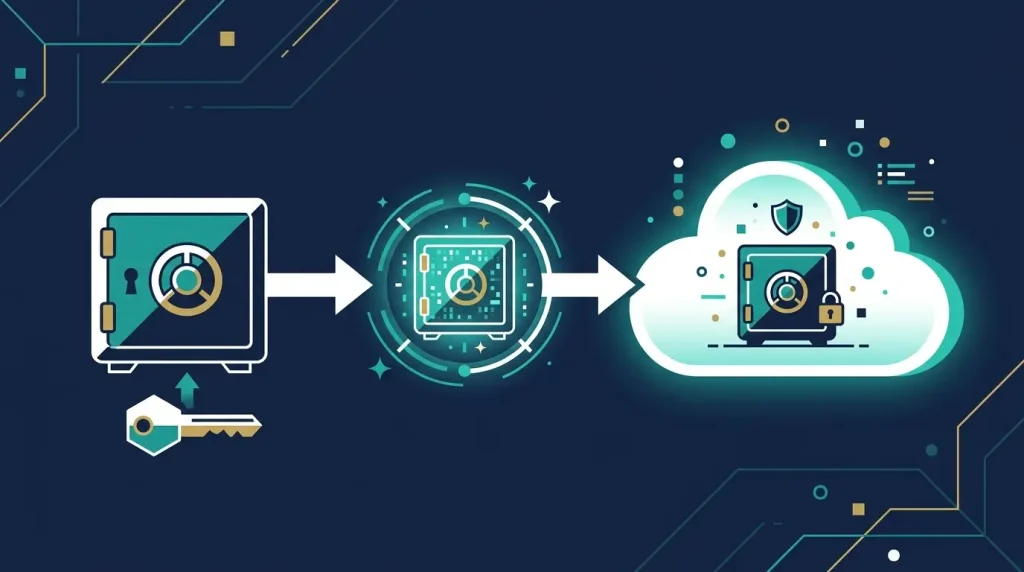
🔐 How your passwords are stored and protected
🔑Master Password
Only you know this. Never sent to servers.
⚙️Key Derivation
PBKDF2 / Argon2 turns your password into an encryption key
🔒 AES-256 Encryption
Your vault is encrypted locally before upload
☁️Encrypted Vault
Only encrypted data lives on servers. The provider cannot read it.
✅Decrypted Locally
Only on your device using your key
Zero-Knowledge Encryption — The Most Important Concept to Understand
The gold standard for password manager security is zero-knowledge architecture. This means the company that makes the password manager mathematically cannot see your passwords—even if they wanted to, even if a government demanded it, and even if their servers were hacked.
Here is how it works in plain terms: your master password never leaves your device. Instead, it is used locally to generate an encryption key using a process called key derivation (typically PBKDF2 or Argon2—algorithms specifically designed to be slow and computationally expensive to brute-force). This key encrypts your entire password vault before any data is uploaded. What reaches the company’s servers is a scrambled, encrypted blob that is useless without the decryption key, which only you hold.
Reputable password managers including Bitwarden, 1Password, Dashlane, NordPass, and Keeper all use zero-knowledge architecture. Their security claims are regularly verified by independent third-party security audits.
AES-256 Encryption — What It Actually Means
Most leading password managers use AES-256 encryption — the same encryption standard used by governments, militaries, and financial institutions worldwide. Breaking AES-256 encryption with current computing technology would take longer than the age of the universe, even with the fastest supercomputers in existence. For practical purposes, if your vault is encrypted with AES-256 and a strong master password, the encrypted data is computationally unbreakable.
The Real Risks of Using a Password Manager — Honestly Assessed
Password managers are not invulnerable. Here are the genuine, documented risks — along with how significant each one actually is and what you can do about it.
⚠️ Risk 1: Your Master Password Is Weak or Reused
Your master password is the single key to everything. If it is short, simple, guessable, or reused from another account that has been breached, your entire vault is potentially compromised. This is by far the most common real-world attack vector against password manager users — not server hacks, but weak master passwords.
✅ Mitigation: Use a passphrase of 4–6 random words (e.g., the “correct-horse-battery-staple” style). Never reuse it anywhere else. Enable 2FA on your password manager account as a second layer of protection.
⚠️ Risk 2: The Password Manager Company Gets Hacked
This is not theoretical — it happened to LastPass in August 2022. Attackers gained access to encrypted password vaults stored on LastPass servers. The critical point: because of zero-knowledge encryption, the vaults were encrypted and the plaintext passwords were not directly exposed. However, if users had weak master passwords, those vaults could potentially be brute-forced offline by attackers who now have unlimited time to try.
✅ Mitigation: Choose a password manager with a strong security track record and regular independent audits. Use a strong master password (see above). The LastPass breach was the worst-case scenario—and even then, strong master passwords kept users protected.
⚠️ Risk 3: Your Device Is Compromised (Malware / Keylogger)
If malware or a keylogger is installed on your device, it can potentially capture your master password as you type it, or access your decrypted vault while it is open in memory. This is a real attack vector — but it applies equally to any method of storing or accessing passwords, including your brain.
✅ Mitigation: Keep your devices updated, run reputable antivirus software, and be cautious about what you install. A compromised device is a compromised device regardless of how you manage passwords, but this is not a password-manager-specific risk.
⚠️ Risk 4: Single Point of Failure
If you forget your master password, lose access to your 2FA device, and have no recovery options set up, you could be locked out of every account simultaneously. This is a genuine operational risk that catches some users off guard, especially if they switch devices or accounts unexpectedly.
✅ Mitigation: Store your master password and emergency recovery kit (most managers provide one) in a physically secure location — a fireproof safe, for example. Most managers also offer account recovery options that can be configured in advance.
⚠️ Risk 5: Phishing Attacks That Mimic the Password Manager
Attackers sometimes create convincing fake versions of password manager login pages to steal master passwords. If you enter your master password on a phishing site, they have everything. Browser extensions help here—they only auto-fill on the real domain, providing a natural defense against lookalike sites.
✅ Mitigation: Always access your password manager through its official browser extension or app — never through a link in an email. Bookmark the official URL and use only that.
⚠️ Risk 6: Company Goes Out of Business or Changes Terms
If your password manager provider shuts down or significantly changes its service (price increases, data policy changes, acquisitions), your data access could be disrupted. This is a lower-severity but real risk — particularly for users of smaller or free-tier services.
✅ Mitigation: Choose an established provider. Better yet, choose an open-source option like Bitwarden, where the codebase is public and you can self-host your vault if needed. Regularly export an encrypted backup of your vault.
Password Manager Security: Honest Strength Assessment
Here is how the most widely used password management approaches compare on the dimensions that actually matter for security:
Password Manager
90%
Browser Built-in
65%
Unique Passwords (Memory)
55%
Notebook / Written Down
30%
Same Password Everywhere
10%
Scores are based on assessment across the following: encryption strength, breach resistance, phishing protection, cross-device access, password uniqueness, and recovery options.
The LastPass Breach: What Really Happened and What It Tells Us
No discussion of password manager safety is complete without addressing the LastPass breach of 2022—the most significant security incident in password manager history and the case study most often cited by people who are skeptical of password managers.
What Happened
In August 2022, attackers compromised a LastPass developer’s account and gained access to LastPass’s cloud storage environment. By November 2022, it was confirmed that attackers had stolen encrypted customer password vaults along with some unencrypted metadata (website URLs, email addresses, and billing information).
What Was NOT Exposed
- Plaintext passwords—vaults were encrypted with AES-256
- Master passwords — never stored or transmitted by LastPass
- Decryption keys—only exist on users’ own devices
What WAS at Risk
- Users with weak master passwords — attackers could attempt offline brute-force attacks against stolen encrypted vaults
- Website URLs stored unencrypted — exposing which sites users had accounts on
- Billing and account metadata — names, email addresses, phone numbers
What It Tells Us
The LastPass breach is simultaneously the worst-case scenario for password manager users and a validation of the zero-knowledge model. Users with strong master passwords and 2FA enabled were effectively protected despite the breach. Users with weak master passwords faced real risk. The lessons: choose a strong master password, enable 2FA, and consider whether your chosen provider has a strong enough security culture—LastPass’s response to the breach was widely criticized as slow and lacking transparency.
Key takeaway: The LastPass breach did not prove password managers are unsafe. It proved that weak master passwords are unsafe and that provider security culture matters when choosing which password manager to trust.
Best Password Managers in 2026 — Reviewed for Safety
🔷 Bitwarden
Free / Open Source Self-Hostable ⭐ Editor’s Top Pick
Bitwarden is the strongest choice for security-conscious users in 2026. It is fully open source — meaning its entire codebase is publicly auditable by anyone — and undergoes regular independent third-party security audits. It uses zero-knowledge AES-256 encryption, supports 2FA with authenticator apps and hardware keys (YubiKey), and allows self-hosting for users who want their vault stored on their own server rather than Bitwarden’s cloud. The free plan is genuinely comprehensive. Premium is $10/year.
✅ StrengthsOpen source and audited · Generous free plan · Self-hosting option · Cross-platform · Strong 2FA support · Excellent track record
❌ Weaknesses The interface is less polished than 1Password’s. · Self-hosting requires technical knowledge. · Premium features needed for some advanced options
🔵 1Password
Paid ($3/mo) ⭐ Best Premium Option
1Password is widely regarded as the most polished and user-friendly premium password manager available. It adds a unique “Secret Key” system — a 34-character key generated on your device that is combined with your master password for encryption. This means even if an attacker has your master password, they cannot decrypt your vault without the secret key. It has an excellent security track record, regular audits, and a Travel Mode feature that hides sensitive vaults at border crossings.
✅ Strengths Unique secret key architecture · Excellent UX · Travel Mode · Business and family plans · Strong audit history · Watchtower breach monitoring
❌ Weaknesses No free plan (only 14-day trial) · Closed source · Slightly more expensive than alternatives
🟢 Dashlane
Freemium ($5/mo) Strong Security
Dashlane offers zero-knowledge AES-256 encryption, a built-in VPN (Premium plan), dark web monitoring, and a polished interface. Its free plan is limited to 25 passwords on one device—making it more of a trial than a long-term free option. The Premium plan adds dark web monitoring and a bundled VPN. Dashlane has a clean security track record and undergoes regular independent audits.
✅ Strengths Built-in VPN (Premium) · Dark web monitoring · Clean UI · Zero-knowledge architecture · Good audit history
❌ Weaknesses: The free plan very limited (25 passwords, 1 device). · Premium more expensive than Bitwarden · Closed source
🔵 NordPass
Freemium ($2/mo) Modern Encryption
NordPass is made by the same company as NordVPN and uses XChaCha20 encryption — a newer and in many ways superior algorithm to AES-256 for software implementations. Zero-knowledge architecture, independent audits, and a clean interface make it a strong choice. The free plan allows unlimited passwords but only one active device at a time—making the Premium plan necessary for multi-device users.
✅ Strengths Modern XChaCha20 encryption · Zero-knowledge · Affordable premium · Good UI · Trusted brand
❌ Weaknesses Free plan: 1 device only · Relatively newer product · Closed source
🟡 Keeper
Paid ($3/mo) Enterprise Grade
Keeper is particularly strong in the business and enterprise space, with FIPS 140-2-validated encryption, zero-knowledge architecture, and compliance features for regulated industries. For personal use, it offers a polished experience with biometric login, emergency access, and encrypted messaging (KeeperChat). Has maintained a clean security record throughout its history.
✅ Strengths: FIPS 140-2 validated · Excellent security record · Business features · Biometric login · Emergency access
❌ Weaknesses No meaningful free plan · More expensive for families · Closed source
🔴 LastPass
Freemium ($3/mo) ⚠️ Proceed With Caution
LastPass was once the most popular password manager in the world. Following the 2022 breach and the company’s widely criticized response—which security experts described as slow, opaque, and lacking transparency—many security professionals now recommend against LastPass as a primary choice. The underlying technology is sound, but trust in the company’s security culture has been significantly damaged. If you currently use LastPass and have a strong master password with 2FA, you are not in immediate danger — but migrating to Bitwarden or 1Password is a frequently recommended step.
✅ Strengths Familiar interface · Large existing user base · AES-256 zero-knowledge architecture (technically sound)
❌ Weaknesses: 2022 breach and poor incident response · Reduced trust in security culture · Free plan limited to one device type · Closed source
Password Manager Comparison Table 2026
| Manager | Free Plan? | Open Source? | Zero-Knowledge? | 2FA Support | Audited? | Self-Host? | Best For |
|---|---|---|---|---|---|---|---|
| Bitwarden | ✅ Full | ✅ Yes | ✅ Yes | ✅ TOTP + HW keys | ✅ Annual | ✅ Yes | Best overall, budget, privacy |
| 1Password | ❌ Trial only | ❌ No | ✅ + Secret Key | ✅ TOTP + HW keys | ✅ Regular | ❌ No | Premium UX, families, business |
| Dashlane | ⚠️ 25 passwords | ❌ No | ✅ Yes | ✅ TOTP | ✅ Yes | ❌ No | VPN bundled, premium users |
| NordPass | ⚠️ 1 device | ❌ No | ✅ Yes | ✅ TOTP + HW keys | ✅ Yes | ❌ No | Modern encryption, value |
| Keeper | ❌ Very limited | ❌ No | ✅ FIPS validated | ✅ Full | ✅ Yes | ❌ No | Business, enterprise, compliance |
| LastPass | ⚠️ Limited | ❌ No | ✅ Yes | ✅ TOTP | ⚠️ Post-breach? | ❌ No | Not recommended (see above) |
How to Use a Password Manager as Safely as Possible
Choosing the right tool is only half the battle. How you use it matters just as much as which one you pick.
1. Create an exceptionally strong master password
Use a passphrase of at least 4 random, unrelated words—”violet trumpet carrot launch,” for example. Avoid real phrases, song lyrics, or anything guessable. Make it at least 16 characters. This is the most important security decision you will make with a password manager. Never write it where it could be found digitally. Store one physical copy in a secure, fireproof location.
2. Enable two-factor authentication immediately
Use an authenticator app (Google Authenticator, Authy, or the Bitwarden Authenticator) rather than SMS for your password manager’s 2FA. This means even if someone steals your master password, they cannot access your vault without your physical device. Hardware keys (YubiKey) are even stronger and supported by Bitwarden and 1Password.
3. Set up your emergency access and recovery kit
Most password managers offer an emergency access feature (a trusted contact who can request access if you are incapacitated) and a downloadable recovery or emergency kit PDF. Configure both. Store the emergency kit in a physically secure location. Losing your master password with no recovery options means losing access to every account you manage through the tool.
4. Export and back up your vault periodically
Regularly export an encrypted copy of your password vault and store it on an offline device (external hard drive or USB) that is kept in a secure location. This protects you against the service shutting down, changing its terms, or your account being locked for any reason. Export at least every 3–6 months.
5. Use the browser extension—not manual logins
The browser extension does more than just fill passwords conveniently. It also provides built-in phishing protection — it only auto-fills credentials on the exact domain they were saved for. If you land on a convincing fake of your bank’s website, the extension will not auto-fill because the domain does not match. This is a meaningful real-world security benefit that disappears if you copy-paste passwords manually.
6. Audit your existing passwords when you start
Most password managers include a security audit or health report that identifies weak, reused, and breached passwords across your vault. Run this when you first set up the tool and work through the flagged passwords systematically. Start with the most critical accounts—email, banking, and any account linked to your payment information.
7. Keep your devices and the password manager app updated
Security vulnerabilities in password manager apps are discovered and patched regularly. Keeping your app and operating system up to date ensures you receive these patches promptly. Enable automatic updates for your password manager where possible. An unpatched vulnerability in an old app version is a far more realistic attack surface than breaking AES-256 encryption.
Password Manager vs. Browser Built-In Passwords: Which Is Safer?
Modern browsers — Chrome, Safari, Firefox, and Edge — all offer built-in password saving. For many users, this is the default and raises the question: is the dedicated password manager actually meaningfully better?
Where Browser Password Managers Fall Short
- Tied to one browser ecosystem. Chrome passwords are in Google’s cloud. Safari passwords are in iCloud. Switching browsers or operating systems creates friction or data loss.
- No cross-platform vault. If you use Chrome on desktop and Safari on iPhone, your passwords do not sync cleanly without deliberate setup.
- Weaker breach detection. Dedicated managers offer more comprehensive and detailed breach monitoring than browser equivalents.
- No secure notes, card storage, or identity fields. Browser managers store passwords only. Dedicated apps store everything — secure notes, card details, passport information, software licenses, and more.
- Vulnerable to device access. On many systems, Chrome passwords can be exported in plaintext by anyone with access to your logged-in device. Dedicated managers require re-entering the master password to export.
Where Browser Managers Are Acceptable
For low-stakes personal use — saving passwords for news sites, forums, and non-financial accounts — browser password saving is perfectly adequate. For anything involving money, email, or sensitive personal data, a dedicated zero-knowledge Password Managers provides meaningfully stronger protection.
What Password Managers Protect You From — And What They Do Not
✅ What a Good Password Manager Protects Against
- Password reuse attacks — if one site is breached, your other accounts remain safe
- Weak password vulnerabilities — every generated password is strong and unique
- Phishing auto-fill (via browser extension) — only fills on the correct domain
- Keylogger capture of individual passwords—you type the master password far less frequently than individual passwords
- Forgetting passwords for rarely-used accounts
- Having to reset passwords repeatedly after forgetting them
❌ What a Password Managers Does NOT Protect Against
- A compromised device with active malware reading your decrypted vault from memory
- You voluntarily sharing your master password with someone
- Shoulder surfing or physical observation of your master password being typed
- SIM-swapping attacks if you use SMS-based 2FA on the password manager account
- A site you use being breached and exposing data in plaintext (not password-manager-specific)
Is a Password Manager Worth It? The Definitive Answer
The question should really be framed differently. It is not “Is a password managers risky?” but rather “Is a password manager riskier than the alternative?”
The alternative—for most people—is a combination of weak passwords, reused passwords across dozens of sites, passwords written in notes apps, or passwords guessable from personal information. According to Verizon’s annual Data Breach Investigations Report, compromised credentials are involved in the majority of web application breaches. The number one reason credentials are compromised is password reuse — one breach exposes a password used on fifty other sites.
A reputable password manager with a strong master password and 2FA enabled eliminates that vulnerability entirely. The residual risks of the password manager itself — primarily the master password and device security — are risks you have to manage regardless of how you handle passwords. But the primary benefit — every account has a unique, unbreakable password — is enormous and immediate.
Bottom line: For virtually all users, the security benefits of using a reputable password manager with a strong master password and 2FA substantially outweigh the risks. The question is not whether to use one—it is which one to choose and how to use it correctly.
Understanding how your data flows through password managers also connects to the broader topic of data security online. If you want to check whether any of your existing passwords have already been exposed, our guide on how to know if your data has been leaked walks you through exactly how to check. And if you are thinking about self-hosting your Bitwarden vault for maximum privacy, our guide to setting up a personal home server on a budget covers everything you need to get started.
Frequently Asked Questions: Are Password Managers Really Safe?
What happens to my passwords if the password managers company shuts down?
Your encrypted vault data is stored both in the cloud and locally on your devices. If a company shuts down, you typically have a grace period to export your data. For maximum safety, regularly export an encrypted backup of your vault independently of the cloud service. Open-source options like Bitwarden mitigate this risk further — you can self-host the entire application if needed, making you completely independent of the company’s servers.
Is it safe to store credit card numbers in a password managers?
Yes—reputable password managers encrypt everything in your vault with the same AES-256 encryption used for passwords. Storing card numbers, CVVs, and billing addresses in a password manager is significantly safer than having them saved in your browser (which stores them with far weaker protection) or written down. The same zero-knowledge model that protects your passwords protects your card data.
Can I use a password manager on multiple devices?
Yes—most password managers sync your encrypted vault across all your devices via the cloud. Bitwarden’s free plan supports unlimited devices and unlimited passwords. 1Password, Dashlane, and NordPass Premium also support all devices. Your vault syncs automatically, meaning a password added on your phone is instantly available on your laptop and vice versa.
What is the safest free password managers?
Bitwarden is widely considered the safest free password managers available in 2026. It is open source (independently auditable), uses AES-256 zero-knowledge encryption, supports unlimited passwords across unlimited devices on the free plan, includes 2FA support, and has undergone regular independent security audits. It is genuinely competitive with paid alternatives on every security metric that matters.
Should I still use 2FA if I have a password manager?
Yes — absolutely and without exception. A password manager generates and stores strong unique passwords, which is one layer of security. Two-factor authentication adds a second, entirely independent layer. Even if an attacker somehow obtains your password for a given account, they cannot log in without your 2FA code. Use both together — they complement each other perfectly and together represent the current gold standard for account security.
Is it safe to use a password manager on a shared or public computer?
No — avoid using your password managers on shared or public computers if at all possible. Public computers may have keyloggers installed, and your session may not clear properly after use. If you absolutely must access an account from a public computer, log in directly without the password managers, then immediately change that password and check your account’s active sessions afterward. Your phone is always a safer option than a public terminal.
Final Verdict: Yes, Password Managers Are Really Safe — When Used Correctly
After examining the technology, the documented breach history, the real-world risks, and the alternatives, the answer to the question “are password managers really safe?” is a clear and evidence-backed yes—with the important qualifier that safety depends on how you use them.
A zero-knowledge password managers with a strong master password and 2FA enabled is significantly safer than any alternative most people currently use. The residual risks—master password strength, device security, and phishing awareness—are not unique to password managers. They are universal digital security practices that everyone should follow regardless of how they manage passwords.
For most people, the recommendation is straightforward: start with Bitwarden (free, open source, excellent security), use a strong passphrase as your master password, enable 2FA with an authenticator app, run the built-in security audit on your existing passwords, and update your most critical accounts first. Within an afternoon, you will have a meaningfully stronger digital security posture than the vast majority of internet users.
Your passwords are the keys to your digital life. A reputable password managers is, today, the most reliable lock available for protecting them.
Explore more cybersecurity and technology guides at ApkBallo.com — where speed meets technology. For more on protecting your online presence, explore our guide on how APIs work and what data they share between apps — essential context for understanding how your passwords and data flow across the services you use.
Start With Bitwarden—Right Now, For Free
Download Bitwarden at bitwarden.com, create an account with a strong passphrase master password, enable 2FA, and import or manually add your most important accounts. It takes one afternoon to set up and provides years of stronger, simpler, and safer password management—at zero cost.
For the most current independent security assessments of password managers, Security.org’s password managers research hub provides regularly updated, independently conducted analysis of the leading products.
Disclaimer: This article is for informational and educational purposes only and does not constitute professional cybersecurity or financial advice. Security features, pricing, and product availability may change. Always verify current product details directly with providers. The discussion of the LastPass breach is based on publicly available reporting and official company disclosures at the time of writing.