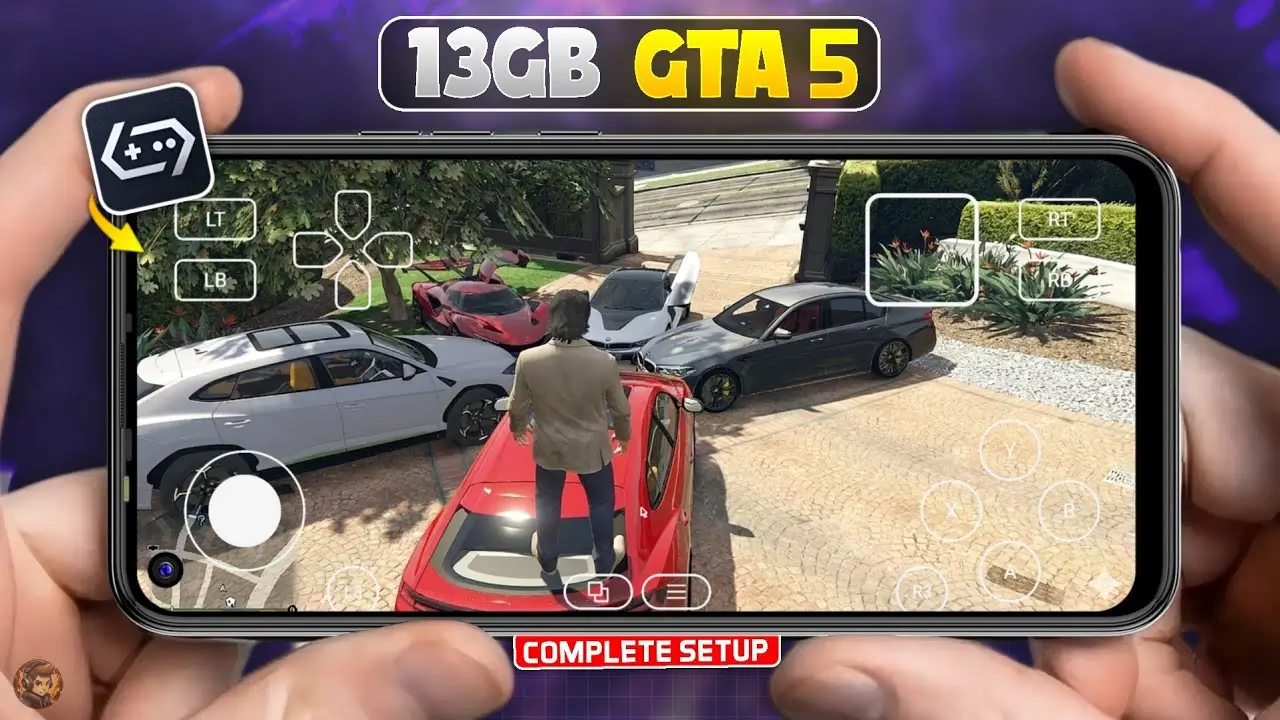
How to Play GTA 5 on Android Using GameHub Emulator
With the rapid advancement of smartphone hardware, Android devices are becoming increasingly capable of handling complex gaming tasks. Tools like GameHub emulator are designed to help users understand how PC-style gaming environments can be configured on mobile devices.
This guide focuses purely on safe, educational configuration tips to help you optimize performance and understand how emulator settings work. It does not include installation steps or game downloads.
⚠️ Important Notice
This article is intended for educational and informational purposes only.
Users should only use legally obtained software and games from official platforms.
We do not promote or support:
- Pirated games
- Unofficial downloads
- Modified or cracked files
Always respect developers and purchase games through legitimate sources.
Understanding Emulator Configuration
Emulators like GameHub work by translating PC game instructions into a format that mobile hardware can process. Because smartphones have different hardware limitations, proper configuration is essential for stable performance.
Recommended Settings Based on Device Power
🔹 Resolution Settings
Resolution has the biggest impact on performance:
- Entry-level devices (4–6 GB RAM): Use lower resolution such as 800×600
- Mid-range devices (6–8 GB RAM): Balanced resolution like 800×600 or 1280×720
- High-end devices (12 GB RAM or more): Higher resolutions like 1280×720 for better visuals
Lower resolution = better performance
Higher resolution = better visuals but more load
🔹 Performance Presets
Most emulators include internal presets:
- Performance Mode / Extreme Mode:
Improves FPS but may increase device temperature - Balanced Mode:
Recommended for most users to avoid overheating
🔹 Graphics Translation (Compatibility Layer)
This setting determines how graphics are processed:
- Some devices perform better with newer translation layers
- Others may require older or stable versions for consistency
👉 If you experience lag or crashes, switching this setting often helps.
🔹 Processor (CPU) Translation
Different devices use different chipsets:
- Certain processors perform better with advanced translation engines
- Others are more stable with built-in/default options
👉 If performance is unstable, switching CPU translation can improve results.
In-Game Graphics Optimization Tips
Once a game is running within an emulator environment, lowering in-game graphics can significantly improve performance.
Recommended adjustments:
- Set overall graphics quality to Normal or Medium
- Reduce shadow and texture quality
- Use full screen mode for better scaling
- Avoid ultra/high settings on mid-range devices
Frame Rate (FPS) Optimization
Controlling FPS helps maintain stability and reduce overheating:
- Low to mid-range devices: Limit FPS to 30–40
- High-end devices: Higher FPS is possible but may increase heat
👉 Stable FPS is always better than fluctuating high FPS.
Common Performance Tips
- Close background apps before running heavy tasks
- Avoid overheating by taking breaks
- Use lower settings for longer sessions
- Keep your device software updated
What to Expect
With proper configuration, users can:
- Experience smoother gameplay environments
- Reduce lag and crashes
- Improve device stability during heavy processing
Performance will always depend on your device’s hardware capabilities.
Final Thoughts
Mobile hardware is evolving quickly, and tools like GameHub demonstrate how far smartphone gaming has come. While results vary depending on the device, understanding the right settings can make a significant difference in performance.
Always prioritize device safety, legal usage, and responsible gaming practices when experimenting with emulator configurations.