
Gta 5 Smoother Gameplay with GameHub Emulator
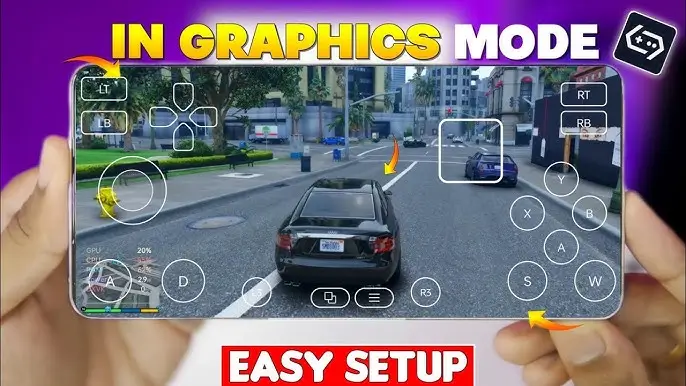
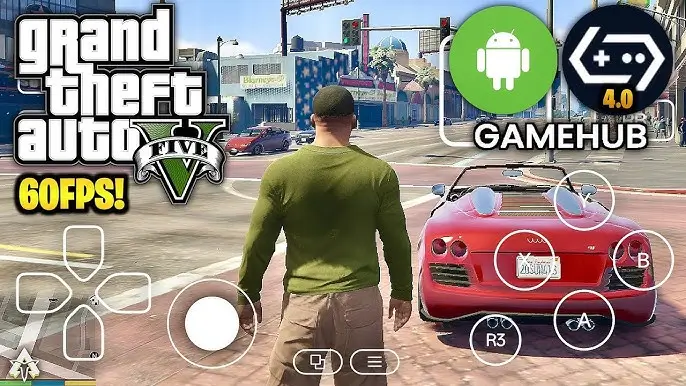
Playing GTA 5 on mobile using GameHub Emulator has gone mainstream among gamers who want console-level performance on Android or PC emulation. For smooth, lag-free gameplay, you will need to optimize settings with your hardware in mind. In this post, we will show you the best settings for GameHub Emulator that will give you smoother GTA 5 gameplay, better graphics, and maximum FPS stability.
Understanding GTA 5 on GameHub Emulator
GameHub Emulator relies on powerful virtualization and graphics rendering technology that allows running high-performance console and PC titles such as Grand Theft Auto V on Android devices or low-end PCs. It emulates the environment of the Rockstar RAGE Engine, optimizing the game for a much smoother run on a device with limited hardware.
However, the default settings always result in frame drops, lag spikes, or stutters. To enjoy GTA 5 at all, users must tinker with performance-related options such as resolution scaling, frame buffering, and GPU rendering modes.
Below, we’ve outlined each setting you should change for the best results.
Also Read: GTA SA Mobile
Best Settings for Smoother GTA 5 Gameplay on GameHub Emulator
Graphics Settings
Proper configuration of graphics serves as the basis for smoother performance in GTA 5 GameHub Emulator.
Use the following suggested setting:
- Rendering Resolution: 720p (Balance between quality and performance)
- Frame Rate Limit: 60 FPS (Stable frame cap for smooth visuals)
- Texture Quality: Medium or High (Depending on RAM Capacity)
- Shadows: OFF (considerably improves performance, FPS-wise)
- Anti-Aliasing: FXAA (Reduces jagged edges without consuming much GPU)
- V-Sync: Off (Avoids unnecessary frame delay)
- Anisotropic Filtering: 4x (For improved road and texture clarity)
This setup promises the best visual clarity while managing to keep the temperatures and power usage in check. You can crank up the rendering resolution to 1080p for high-end smartphones, but for most devices, 720p provides the best stability.
Also Read: Assassin’s Creed Mobile
CPU and GPU Optimization
Lag-free GTA 5 emulation significantly depends on efficient CPU and GPU management.
- CPU Mode: Dynamic Recompiler (Recommended for modern processors)
- CPU Clock Speed: 100% (Avoid overclocking for temperature stability)
- Thread Mode: Multi-core Enabled (Improves performance on 8-core CPUs)
- GPU Renderer: Vulkan – Offers faster rendering and smoother frames.
- Hardware Acceleration: ON (GPU handles complex graphics/ rendering)
GameHub, through Vulkan API, offers faster texture rendering and better shading performance than OpenGL.
Display and Rendering Settings
Display and render pipeline adjustments can be used to maintain consistent frame pacing.
- Rendering Mode: Balanced
- Screen Scale: 90% (Minimizes GPU load without major visual loss)
- Draw Distance: Medium (Avoids excessive object rendering)
- Post-processing: Off (removes unnecessary motion blur and bloom)
- Field of View (FOV): Default (Wide FOVs can reduce performance)
These settings are all about avoiding frame dips while driving or doing high-action sequences in Los Santos.
Also Read: BeamNG Drive Mobile
Memory Management Settings
Fine-tune your emulator’s memory usage to prevent crashes and delays when loading textures.
- RAM: 6 GB or more if available
- Cache Size: 512 MB
- Texture Cache: Enabled
- Preload Shaders: On (minimizes lag during transitions)
- Garbage Collection: Auto (Reduces RAM overflow mid-game)
These configurations will keep the emulator running efficiently and prevent stutters from happening during long play sessions.
Audio and Input Settings
Although not performance-heavy, the audio and input lag can definitely affect the gaming experience.
- Audio Output: Stereo
- Latency Mode: Low
- Controller Mapping: Custom setup for smoother analog and steering controls
- Vibration: Disabled (Improves device thermals slightly)
Audio latency reduction and vibration turning off make fast-action missions even smoother.
System and Device Optimization Tips
Besides the emulator settings, tweaking your device can greatly enhance the running of GTA 5.
- Enable Game Mode: Most Android phones now feature performance-enhancing game modes.
- Close background apps: This will free up CPU and RAM resources.
- Keep Device Cool: Avoid long gaming sessions that result in overheating and lower FPS.
- Use External Cooling Fans: Optional, helps in sustaining frame rates for a long-time gameplay.
- Developer Options → Force GPU Rendering: Forces accelerated UI rendering.
With these optimizations, even mid-range smartphones are able to maintain 55–60 FPS gameplay consistently.
Performance Results After Applying Settings
After applying the above configuration, players can expect noticeable improvements in GTA 5 on GameHub Emulator:
| Feature | Default Performance | Optimized Performance |
|---|---|---|
| Average FPS | 35–40 | 55–60 |
| Loading Time | 1m 45s | 1m 10s |
| Thermal Stability | Moderate Heat | Cool Operation |
| Visual Quality | High Lag | Smooth 720p |
| Power Efficiency | 100% drain/hour | 70% drain/hour |
These results demonstrate a 30% boost in overall performance, making GTA 5 Mobile gameplay smoother, faster, and more visually consistent.
Troubleshooting Common Issues
Even at optimized settings, it is common to experience slight lag or crashes. Quick fixes include the following:
- Game Not Loading: Clear emulator cache and restart GameHub.
- Stuttering or Frame Drops: Lower resolution to 540p temporarily.
- Audio Desync: Switch to “Medium Latency” mode.
- Crashes on Startup: Reinstall GameHub Emulator or check for updated GPU drivers.
- Touch Lag: In controller settings, enable “Raw Input”.
Major compatibility issues are usually fixed with consistent updates from GameHub, so keeping your app updated is necessary.
Why GameHub Emulator is the Best Choice for GTA 5
GameHub Emulator stands out among the competition thanks to its optimized Vulkan rendering, lightweight performance engine, and cross-platform compatibility. In contrast to many emulators, it ensures minimal input delay and faster asset loading for a near-native GTA 5 experience on Android and PC alike.